
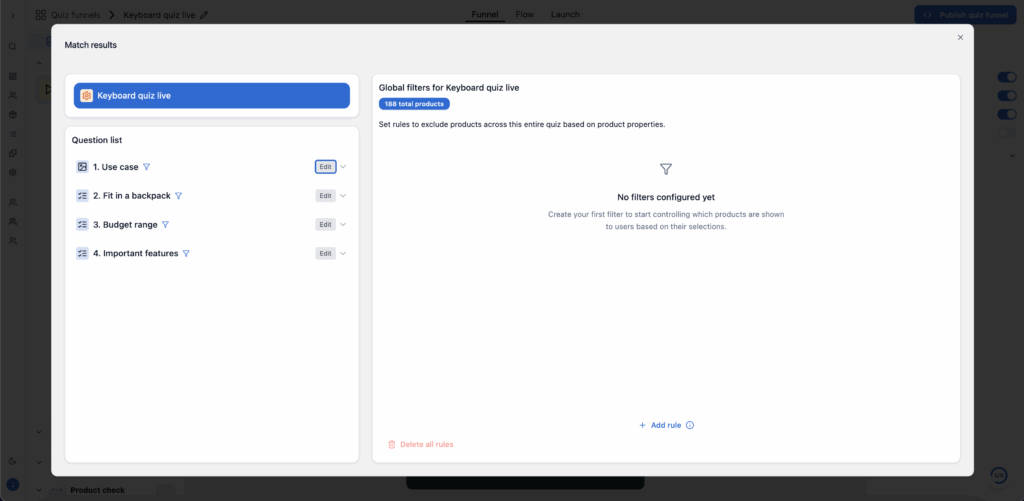
Global filters let you automatically filter which products from your feed can appear in your quiz funnel results. Unlike question-level filters, these apply everywhere—regardless of what questions visitors answer.
Practical use cases
Inventory management
One of the most common uses is hiding out-of-stock products. If your feed includes an "in_stock" or "inventory" property, you can set a global filter like [in_stock] [equals] [true]. Now, only available products show up in recommendations—no manual updates needed.
Country/language specific products
Running localized quiz funnels? Use global filters to match products to specific markets. For example, filter by [country] [equals] [NL] in your Dutch quiz funnel to ensure only relevant products appear.
How it works
Global filters follow this structure: [property] [operator] [value]
- Property – Any column from your product feed (e.g., "category," "in_stock," "country")
- Operator – Defines the match type (equals, not equals, contains, etc.)
- Value – The specific value to filter by (e.g., "true," "NL," "Electronics")
These filters are evaluated before any quiz logic runs, essentially pre-filtering your entire product catalog.
Setting up global filters
- Open your quiz funnel in the bluebarry editor
- Go to Settings → Global Filters
- Click Add Filter
- Select the property, operator, and value
- Save and publish your changes
💡 Pro tip
Combine multiple global filters to create precise product subsets. For example, filter by both [in_stock] [equals] [true] AND [category] [equals] [Premium]to only show available premium products.