
The goal of this integration is simple: push quiz data, product recommendations, and preferences directly into Klaviyo profiles. This allows you to segment your audience based on their actual answers—not just guesses—and send automated emails that increase Lifetime Value (LTV).
Step 1: Connect the Integration
- In your Bluebarry dashboard, navigate to Integrations
- Find the Klaviyo settings section and click Connect
- You will be redirected to a Klaviyo authorization screen. Click Allow to grant permissions
- You will be automatically redirected back to Bluebarry to configure your settings
Step 2: Configure Sync Settings
Once connected, you need to define when and how data is synced:
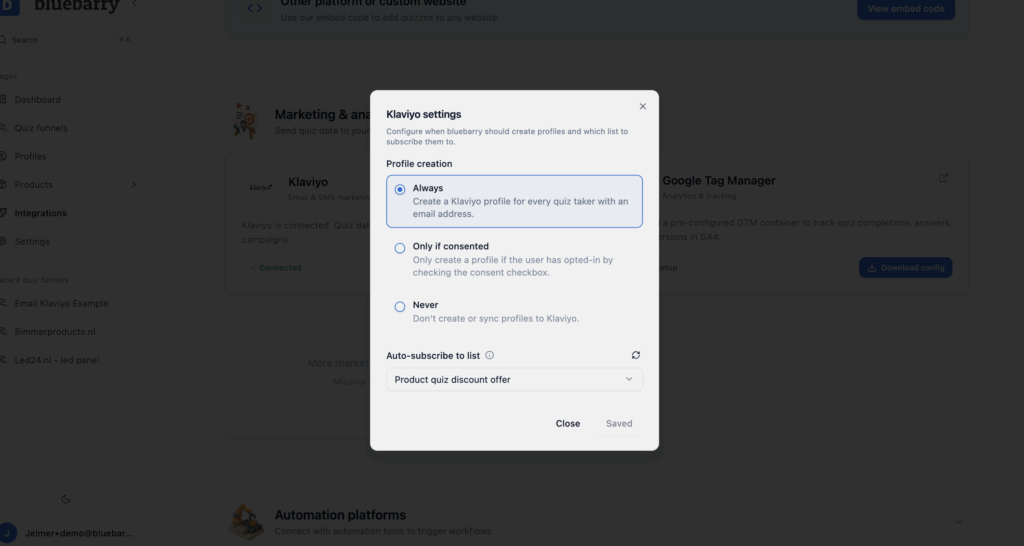
Profile Creation
Choose when a profile is created in Klaviyo:
- Always: Every time an email is provided
- On Consent: Only when the user checks a specific consent box
- Never: Useful for testing without cluttering your list
Auto-Subscribe
Select a specific Klaviyo List (e.g., "Product Quiz") to automatically add new profiles to.
Step 3: Verify & Test
To ensure the data is flowing correctly:
- Open your quiz and complete it as a user, ensuring you fill in the Email Step (e.g., "Would you like a 10% discount?")
- In the bluebarry menu, go to the Profiles section
- Locate your test email. You will see a status indicator. If it says "Not Synced," refresh the page (syncing typically takes about 10 seconds)
- Once synced, you will see all properties—including quiz answers and product recommendations—attached to that profile
Step 4: Customize Your Data (Optional but Recommended)
By default, bluebarry sends the answer text exactly as it appears in the quiz. To make this data cleaner for Klaviyo segments:
- Go to the Quiz Editor and select Flow Section
- Click on a specific answer (e.g., "€0 - €10")
- Open the Settings for that answer
- Edit the Answer Label. This is the value that will be sent to Klaviyo
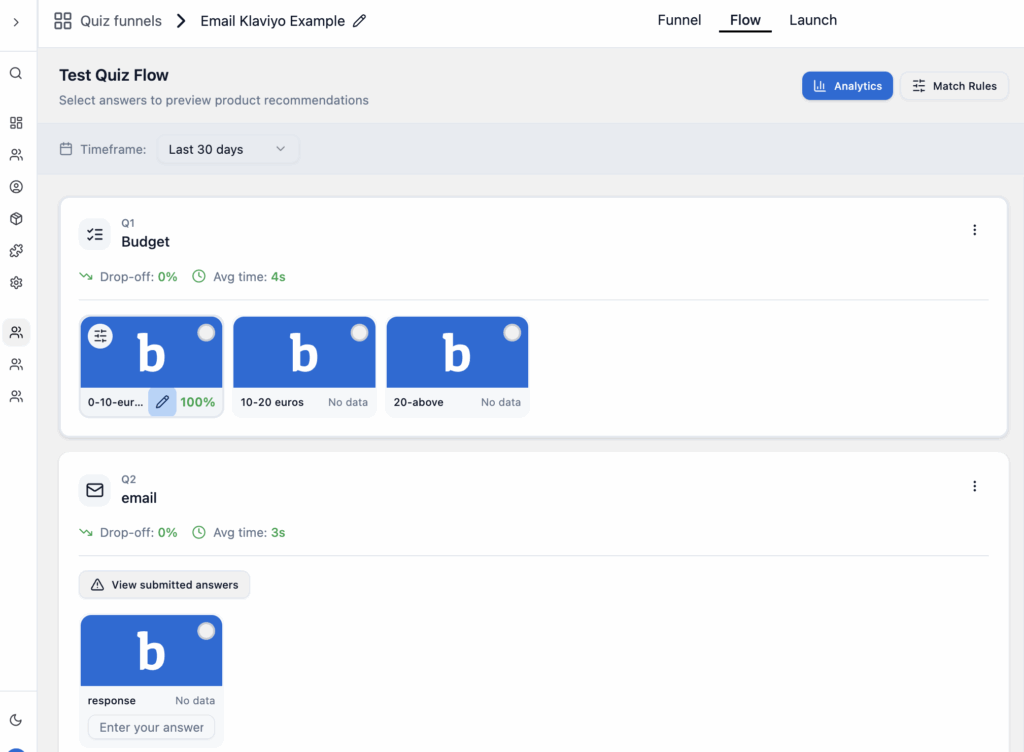
Example: Change a long button text like "I have a small budget" to just "Budget: Small" for cleaner filtering in Klaviyo flows.
💡 Pro tip
Use consistent naming conventions across all your answer labels. This makes it much easier to build segments and flows in Klaviyo. For example, always use "Budget: X" format for budget-related answers.