
What You'll Learn
How to connect your products to quiz answers so customers get personalized recommendations that actually match their needs.
Before You Start
You need a product feed ready
- List of all products you want to recommend
- Must include specific required information (detailed below)
- Can be from Shopify, WooCommerce, Magento, Google Sheets, or third-party tools like Channable
Step 1: Prepare Your Product Feed
Before we are able to recommend the right products to your audience, we need product data. So first, we create a data source with all your products and the information needed to filter and display them.
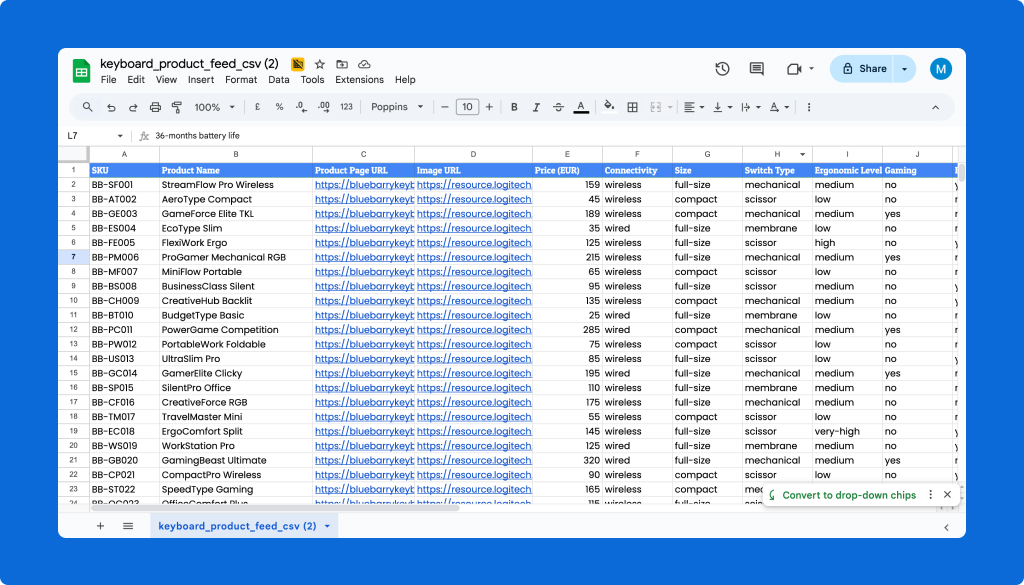
1.1 Required Product Information
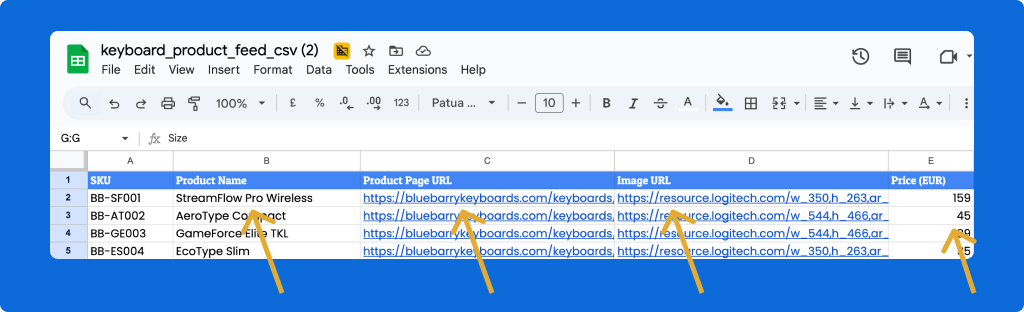
Every product must have these 4 mandatory properties:
- Product Name
- Displays on result cards
- Example: "Wireless Gaming Keyboard Pro"
- Product Page URL
- Where customers go when they click "View Product"
- Example: "https://yourstore.com/wireless-keyboard-pro"
- Image URL
- Product photo shown on result cards
- Example: "https://yourstore.com/images/keyboard-pro.jpg"
- Price
- Must be numeric values only (no currency symbols)
- Example: "295" not "€295" or "$295"
- Add currency symbols in display settings, not the feed
1.2 Additional Filter Properties
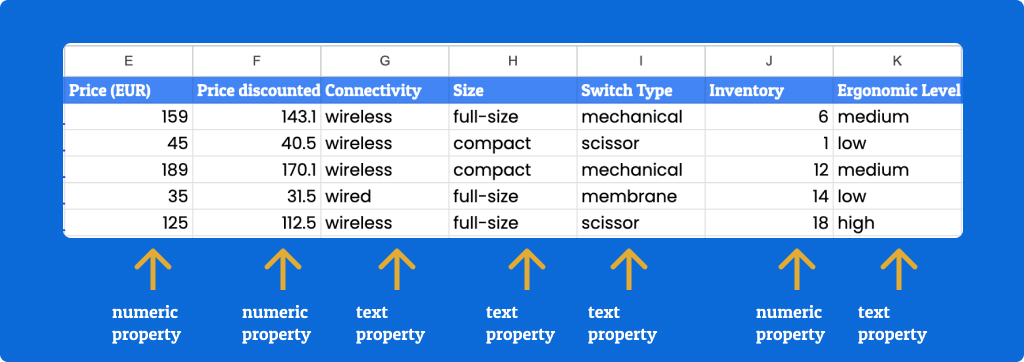
Include any product characteristics you want to filter by:
Text Properties
- Connectivity: "Wired", "Bluetooth"
- Switch Type: "Mechanical", "Membrane"
- Brand: "Logitech", "Corsair", "Razer"
Numeric Properties
- Dimensions, weight, battery life
- Discount prices, warranty periods
Step 2: Get live link to connect feed
In order to make sure we always work with updated product data, we will need a live link to access your product feed.
2.1 CMS plug-ins:
- WooCommerce (plug-in)
- Magento 2
- Shopify
- Lightspeed
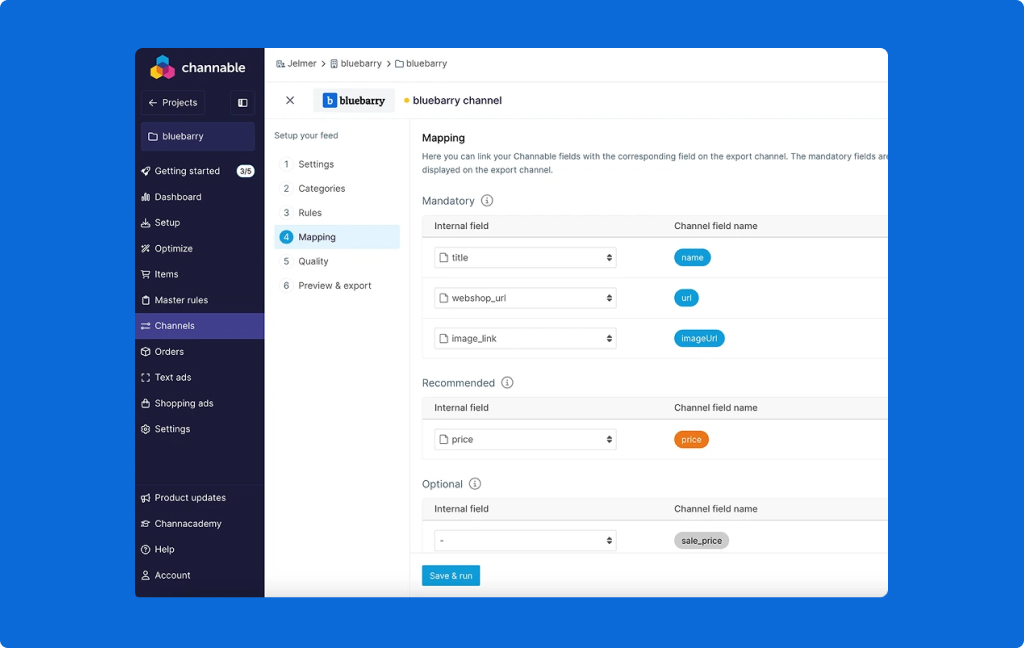
2.2 Feed tools:
- Channable
- Google Sheets
Step 3: Upload Your Product Feed
What this does: Import your products into bluebarry so the quiz can access and recommend them.
3.1 Start import
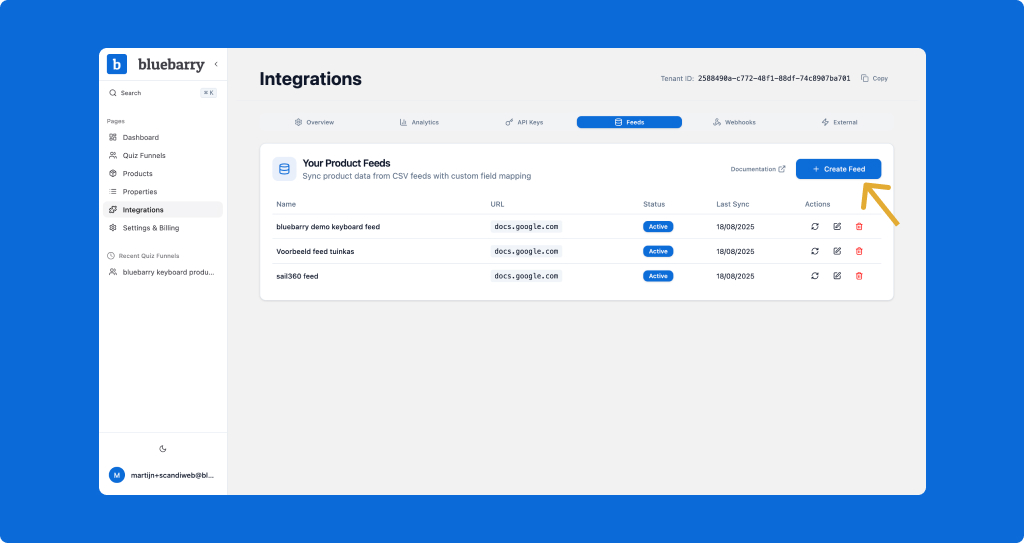
- Go to Integrations > Feeds
- Click "Create Feed"
- Enter feed name (internal reference)
- Example: "keyboard feed bluebarry"
- Add your feed URL or upload CSV file
3.2 Select Unique Identifier
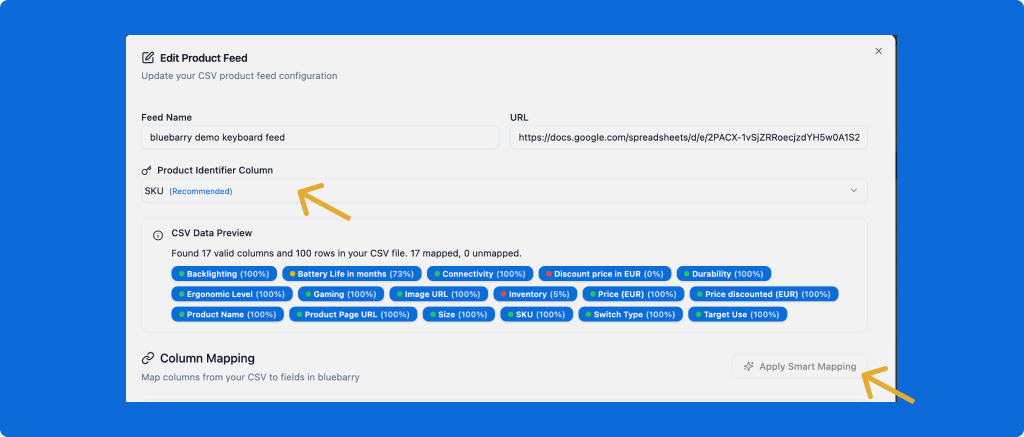
Always make sure to select a unique identifier in your product feed. This could be your product SKU, or a specific bluebarry ID.
3.3 Apply Smart Mapping
Bluebarry automatically maps common fields:
- Product name → Name
- URL → Product page URL
- Image → Image URL
- Price → Price (confirms numeric format)
Always verify the mapping is correct before proceeding.
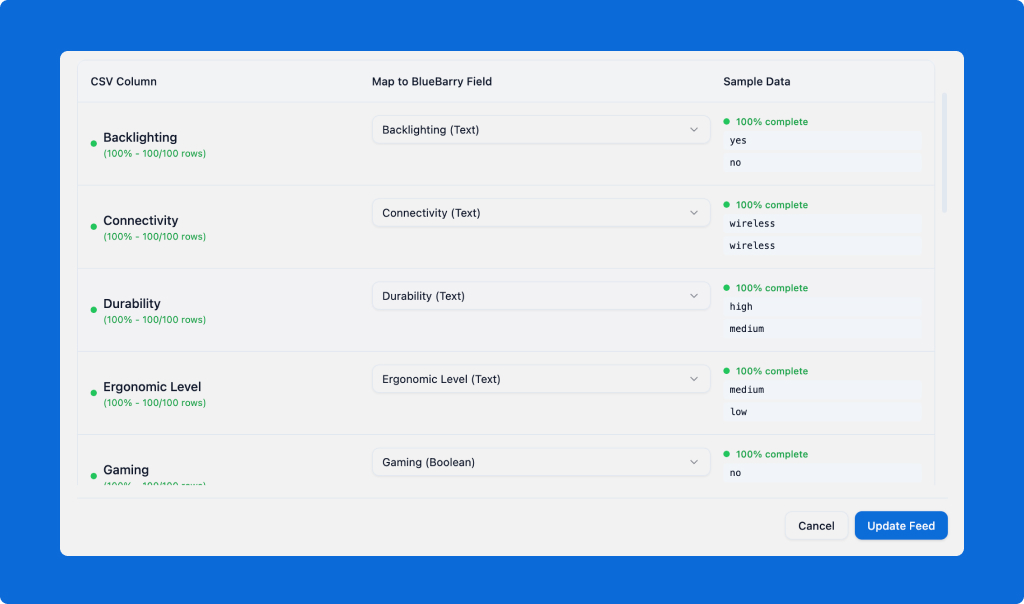
3.4 Map Additional Properties
Set property types for filtering:
- Text properties: For categories, features, brands
- Numeric properties: For prices, dimensions, ratings
3.5 Sync Your Feed
Click "Sync" to import all products into bluebarry.
Step 4: Map answers to product feed
What this does: Create rules that filter products based on quiz answers, ensuring customers only see relevant recommendations.
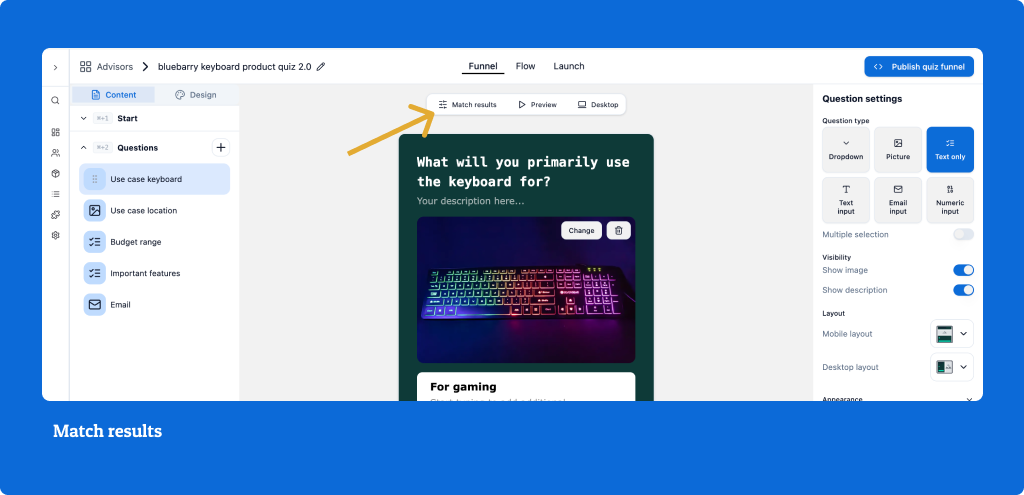
- Go to quiz funnel
- Select 'match results' in the upper navigation bar
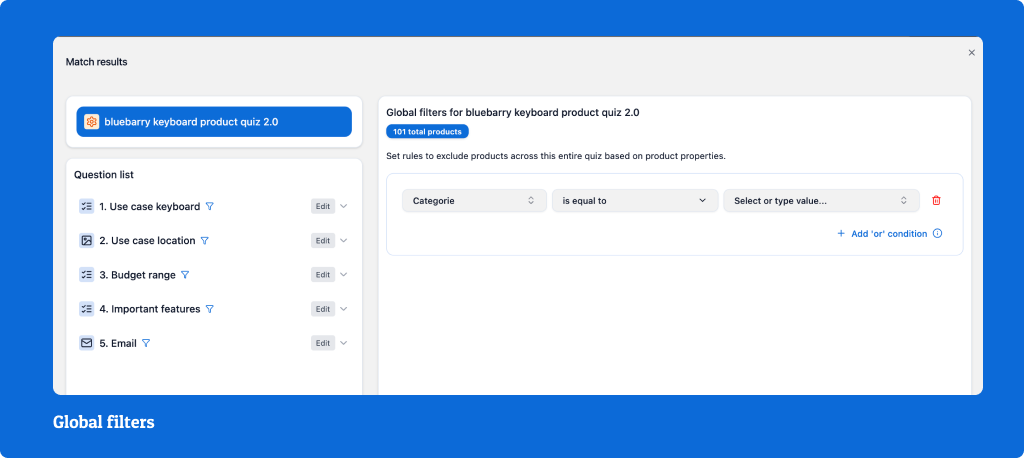
4.2 Global Filters (Optional)
Set overall restrictions for the entire quiz:
- Product category (if feed contains multiple categories)
- Availability status, brand restrictions
- Example: Only show "stock level" 'is greater than' '2'
4.3 Answer-Based Filtering (examples)
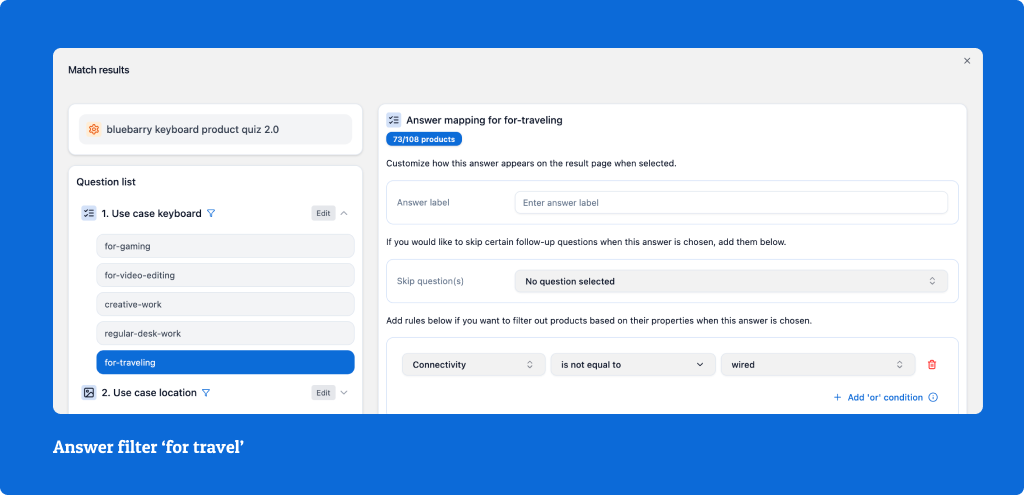
Create specific rules for each quiz answer:
Example Rules for question: What will you primarily use the keyboard for?
Answer: "For Travel"
- Filter: Connectivity; 'is not equal to' "Wired"
- Logic: Travelers need wireless options
Answer: "For long work days at the office"
- Filter: Ergonomic level; 'is equal to' "high"
- Logic: Intensive usage needs high ergonomic features
Note: Monitor your filter impact in real-time. The system displays how many products each filter affects. If you see the count drop too low, you know to adjust the criteria before going live.
Example Rules for question: What is your budget
Answer "Low Budget"
- Filter: Price ≤ 50
- Logic: Stay within budget range
Answer: "Medium Budget"
- Filter: Price ≥ 50 AND Price ≤ 100
- Logic: Price range boundaries
4.4 Filter Operators
Text Properties:
- Equal to: Exact match only
- Example: Brand = "Apple" (shows only Apple products)
- Not equal to: Exclude specific values
- Example: Connectivity ≠ "Wired" (shows wireless and Bluetooth, excludes wired)
Numeric Properties:
- Greater than: Above a value
- Example: Price > 100 (shows products over $100)
- Less than: Below a value
- Example: Price < 50 (shows products under $50)
- Greater than or equal to: At or above a value
- Example: Rating ≥ 4.5 (shows 4.5 stars and higher)
- Less than or equal to: At or below a value
- Example: Price ≤ 100 (shows products $100 and under)
4.5 Combining Rules: AND vs OR
AND Logic (All conditions must be true):
- Price ≥ 50 AND Price ≤ 100 = Products between $50-$100
- Brand = "Apple" AND Category = "Laptop" = Only Apple laptops
OR Logic (Any condition can be true):
- Color = "Red" OR Color = "Blue" = Products in either red or blue
- Size = "Small" OR Size = "Medium" = Products in small or medium sizes
When to use AND:
- Creating price ranges (minimum AND maximum)
- Multiple requirements must all be met
- Narrowing down results
When to use OR:
- Accepting multiple acceptable options
- Creating broader categories
- Including alternative choices
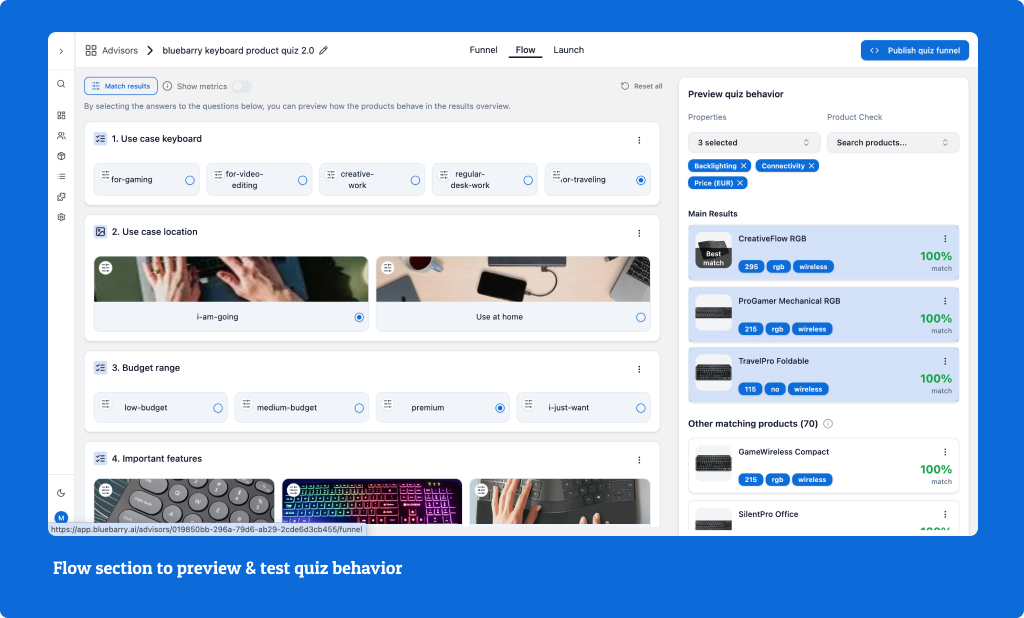
4.6 Test Your Filters in 'flow'
Use the 'flow section' to test different answer combinations:
- Check how many products match each filter
- Verify logical combinations work correctly
- Adjust filter ranges if too few/many products match
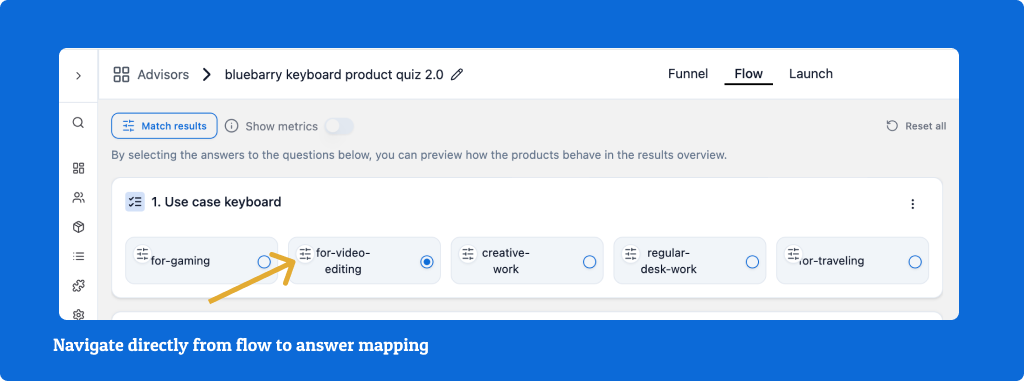
Quick tip: If you click in the answer in Flow section on the filter icon, you go directly to the answer mapping of that specific answer.
Step 5: Create Result Cards
Now we have mapped all the answers to our product properties, it is time to set up the result section. Here we can define how the recommendations are provided on the result page.
5.1 Define result page text
- Go to your quiz funnel
- Navigate to Results section
- Change the text to for example: "These are your perfect matches"
- Add an optional extra description
5.2 Add result cards
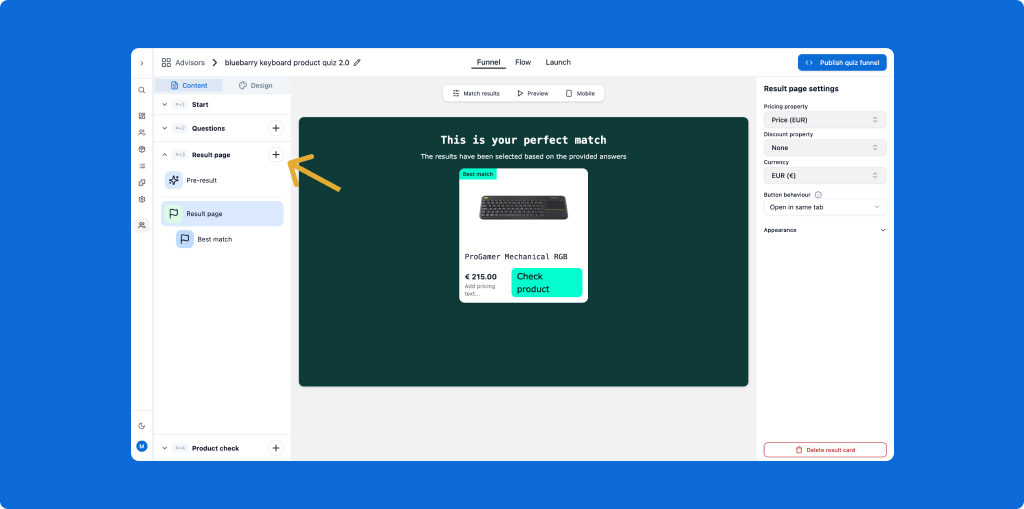
A result card is one potential recommended product on the result page. By default, there is only one result card, meaning a maximum of 1 product could be recommended. If you want to provide multiple results, you can add them using the '+' in the 'result page' navigation on the left.
5.3 How many result cards?
Single Card: Shows one "perfect match"
Important: Cards show maximum possible results
- Set 3 cards = up to 3 products shown
- If only 1 product matches filters = only 1 card displays
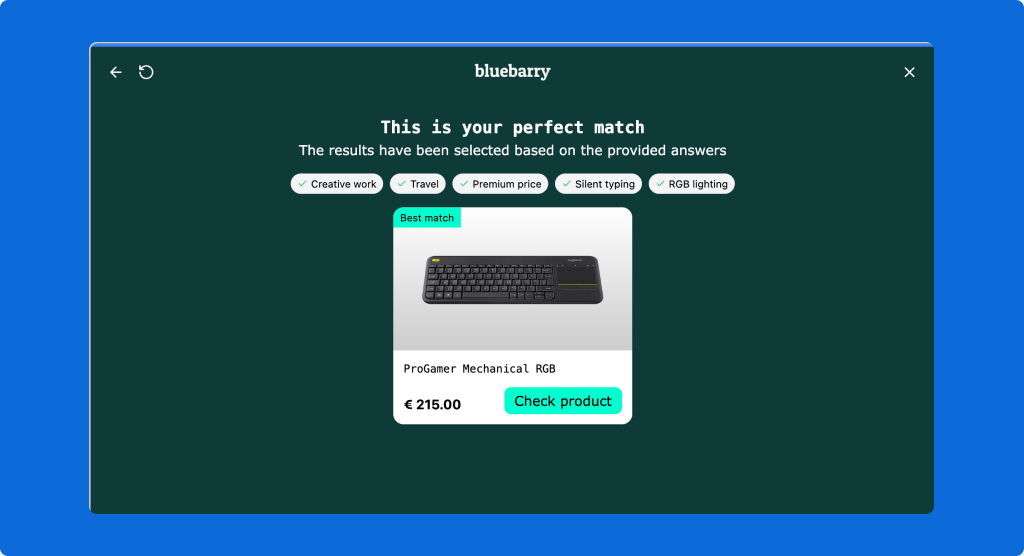
Multiple Cards: Shows different types of recommendations
- Example: "Best Match", "Customer Favorite", "Budget Option"
5.4 Card Labels
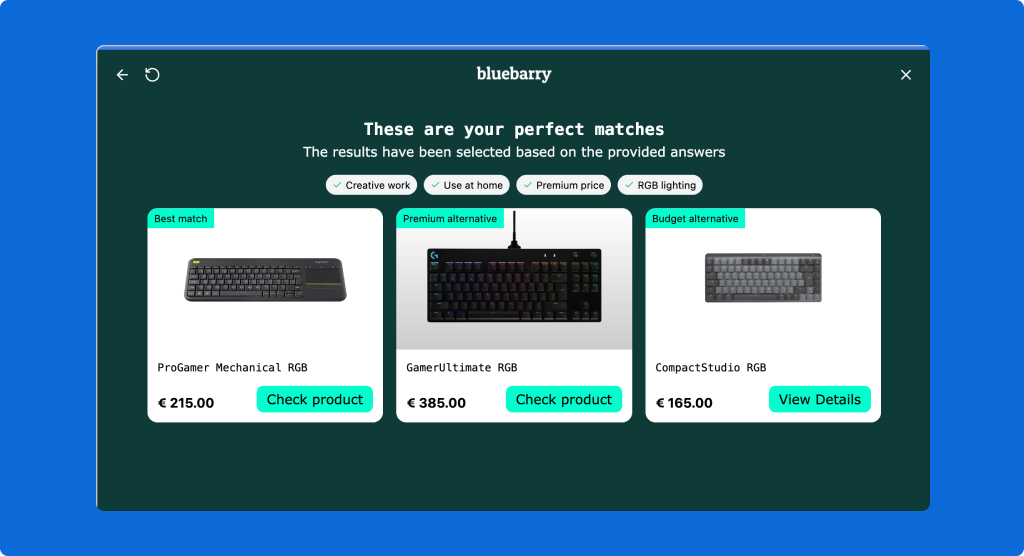
Internal Label: For your reference
- Example: "premium_option"
Display Label: What customers see
- Example: "Premium Choice" or "Customer favourite"
- If you keep the label empty (no text), no label will be shown.
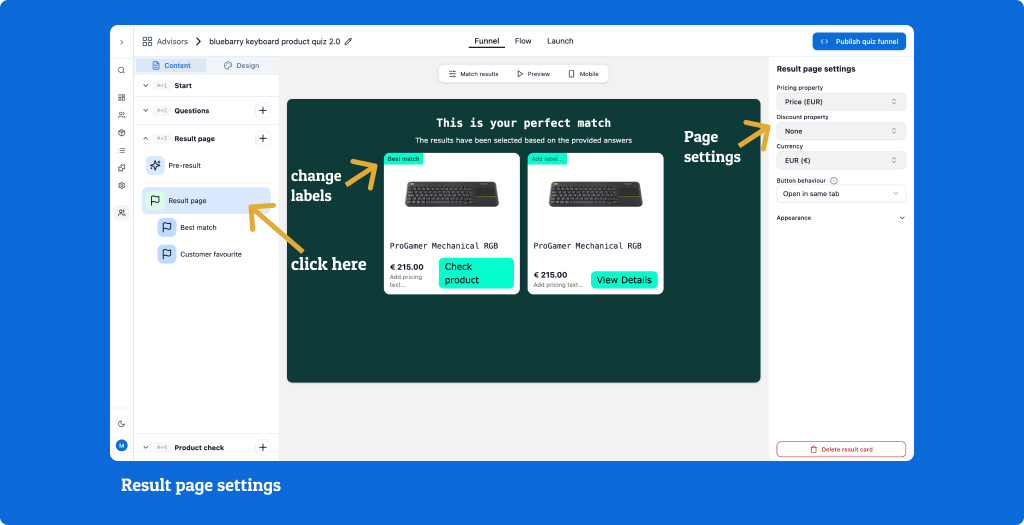
5.5 Result page settings
Pricing property
- Show/hide prices on cards
- Add price context (e.g., "VAT included")
Discount Properties (if available)
- Show original vs. sale prices
- Requires discount field in product feed
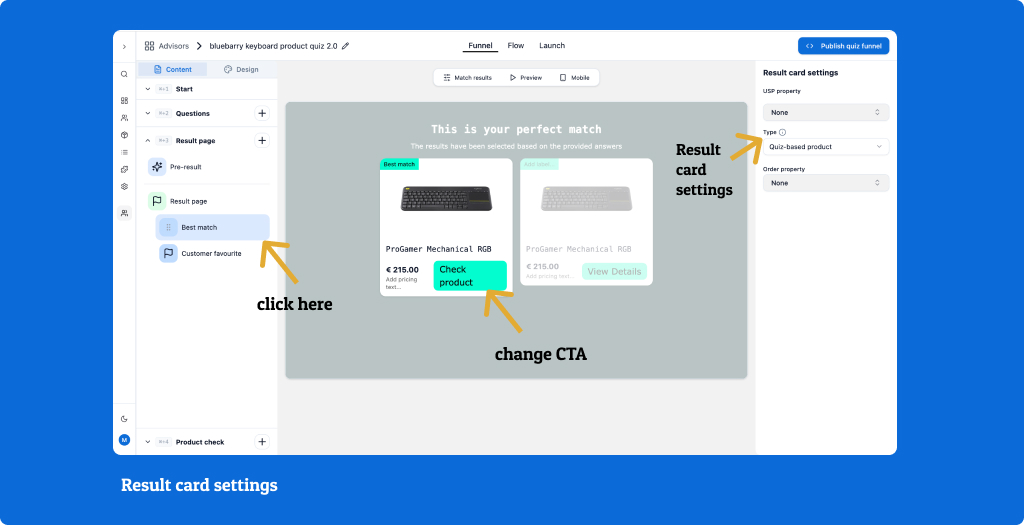
5.6 Result card settings (on card)
Call-to-Action Button
- Customize button text
- Example: "View Product", "Check Details", "Buy Now"
Pricing context
- Select 'add pricing text' in card to customize text.
- Example: "VAT included"
5.7 Result card settings (in navigation right-hand side)
USP property
- This property can be leveraged to highlight specific USP's on the result card
- For example: connectivity (keyboards), material (jewelry), type of cushioning (running shoes)
Step 6: Prioritize Results
When several products perfectly match a customer's answers, you need to decide which one to highlight. This lets you align recommendations with your business goals while still giving customers relevant options.
6.1 Use flow section
In bluebarry's 'Flow' step, you can preview your quiz behaviour by selecting different combinations of answers. Doing this, you can test what results will be given for each combination of answers.
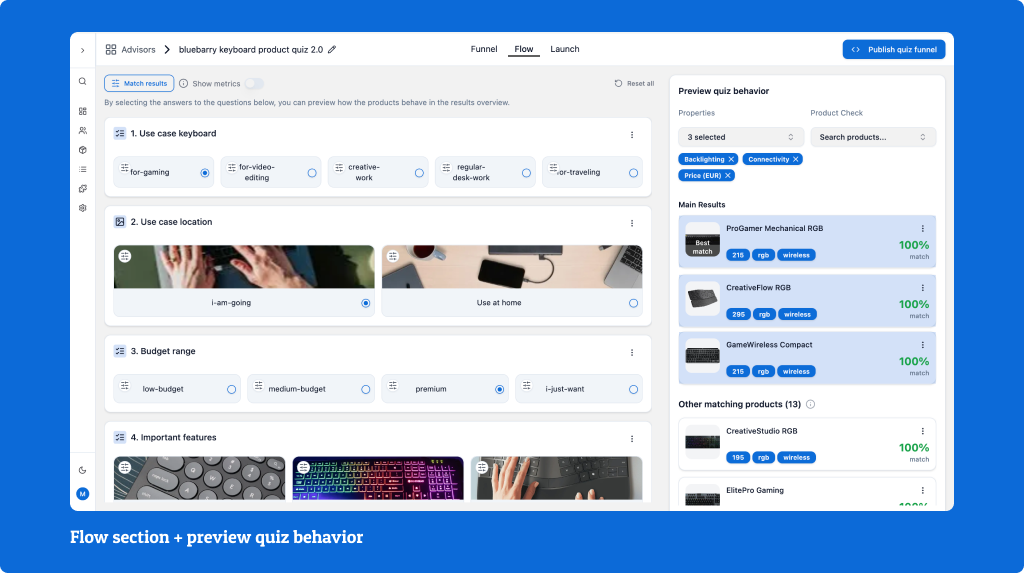
There can be several observations:
- You are seeing results that should not be there
- Check your answer mapping. Most likely a filter is not set correctly
- You would rather have other products be recommended first over others.
6.2 Order property to prioritize specific products
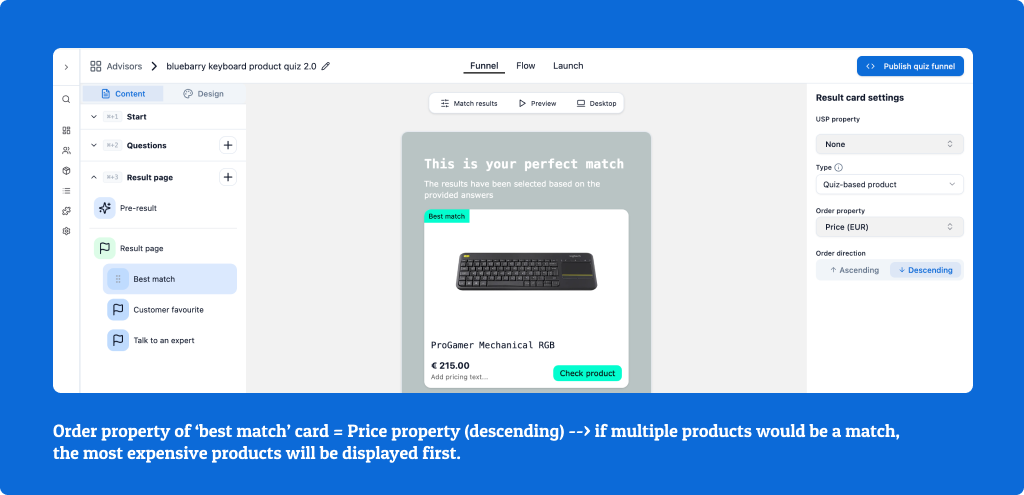
When you have more perfect matches than result cards: If 10 products all match 100% but you only have 3 result cards, bluebarry needs to choose which 3 to show. Use the 'Order Property' feature to control this selection based on your business priorities.
Price-Based:
- Highest price first (premium options)
- Lowest price first (budget options)
Business-Based:
- Profit margin (highest margin first)
- Inventory levels (clear old stock)
- Strategic products (promote new launches)
6.3 Card specific order property settings
Set different priorities for each result card:
- Best Match: Highest price
- Budget Option: Lowest price
- Customer Favorite: Highest rating
Note: Ordering only works with numeric properties.
Step 7: Set Up Pre-Result Page (Optional)
The pre-result page appears between quiz completion and results display. While optional, it serves important purposes:
7.1 Why Use a Pre-Result Page?
Enhances Perceived Value: The brief loading time makes customers feel their answers are being carefully analyzed for personalized recommendations.
Marketing Opportunity: Perfect moment to share your brand story, highlight what makes you special, or build trust with engaged visitors.
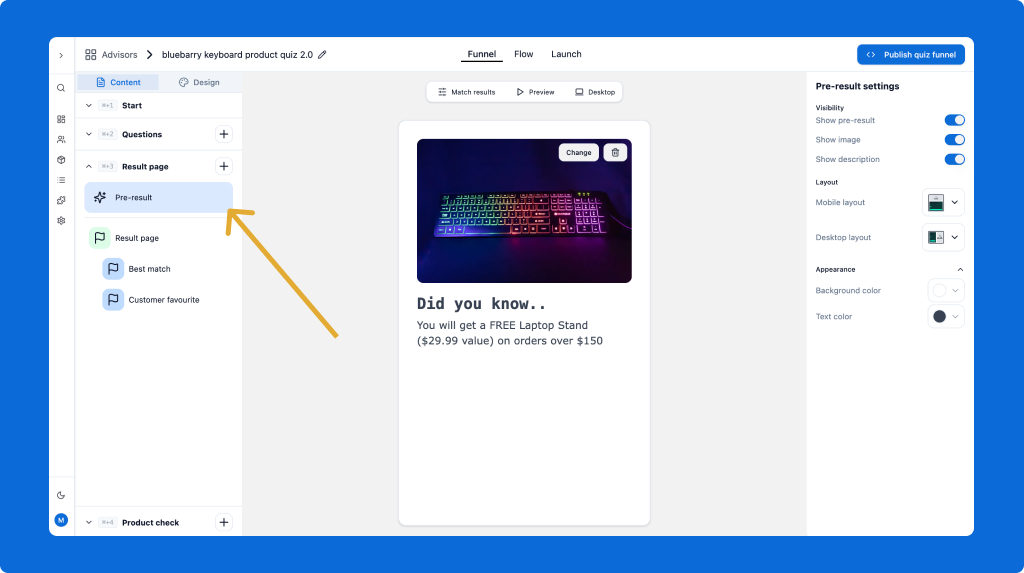
7.2 Pre-Result Page Options
Text Only: Simple message using your brand colors and fonts
Text with Images: Combine your message with product photos or brand visuals
Full Custom Background: Upload a branded image with built-in messaging
💡 Remember: You can skip this page if you prefer to show results immediately, but it's an excellent opportunity to strengthen your brand connection when visitors are most engaged.